Meesho Label Branding
Upload a Meesho label PDF, then your logo or custom text (brand name, thank-you note, phone number). EcomCrop places it in the bottom white space on every page. Flipkart and Amazon files are rejected with an error.
Built for Meesho labels
Meesho shipping and packing PDFs often leave a large white band at the bottom of the page. Use this tool to drop your shop brand into that space without covering addresses, barcodes, or invoice tables.
Upload a PNG or JPEG with a transparent or solid background. Keep the logo modest in height so thermal print density stays sharp. The same placement is applied on every page for a consistent pack-out.
Works with cropped Meesho PDFs
Many sellers run Label Crop or Sort Meesho Labels first, then Meesho Label Branding on the result. Because every step is client-side, order data never leaves the device between tools.
Choose logo, custom text, or a thank-you overview
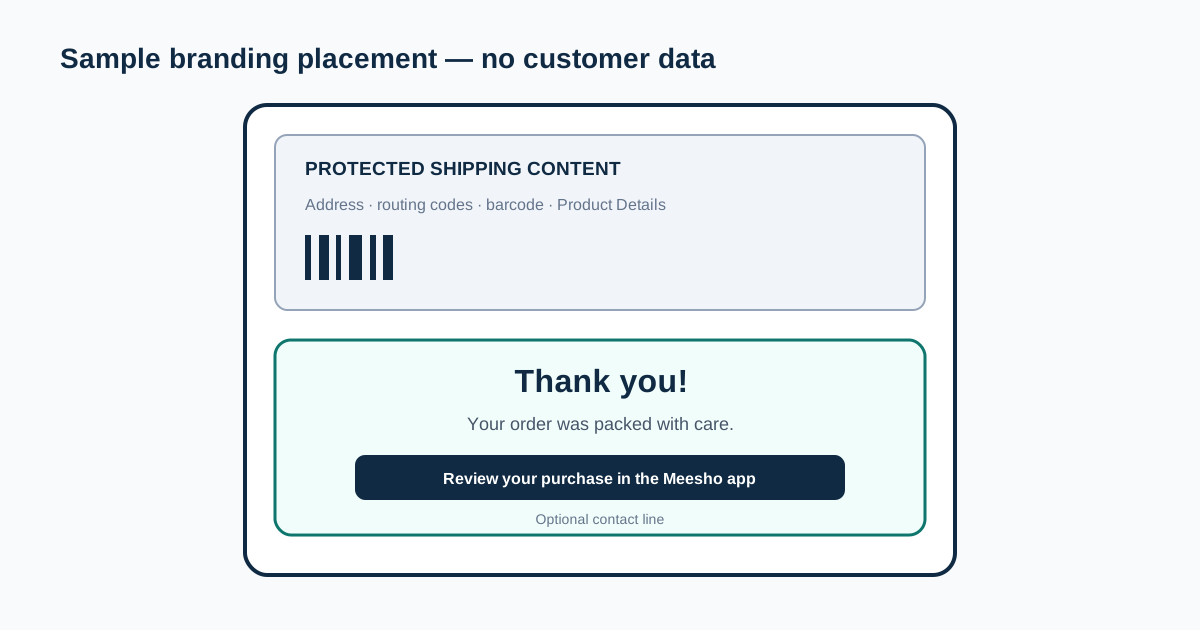
Logo mode accepts JPG, PNG, or WEBP artwork and keeps its aspect ratio. Custom text mode is useful for a short shop name, support line, or packing message. The thank-you overview creates a structured card with a heading, review message, review steps, and an optional contact line.
Choose the content type before uploading the label PDF so the workspace can show the correct controls. Saved logo or text settings stay only in this browser and can be forgotten from the workspace at any time.
Multiple PDFs and SKU sorting
You can add several Meesho label PDFs to one branding run. The tool reads the label pages, applies the selected branding consistently, and can sort the branded result using the same SKU-first workflow as Meesho Sort.
Check the uploaded-file list before processing. Removing one file changes the final page total, while Add more lets you include another batch without restarting the branding setup.
Safe placement and readable print size
Branding is placed only in the available lower area of the Meesho layout. The preview is the final safety check: customer addresses, routing codes, barcodes, Product Details, and mandatory invoice text must remain unobstructed.
Small and medium marks are usually clearer on thermal printers than detailed full-width artwork. Use high-contrast artwork, avoid very thin strokes, and print one sample before processing a large seller batch.
Troubleshooting branding output
If a logo looks soft, start from a larger source image rather than enlarging a small screenshot. If text wraps unexpectedly, shorten the message or select a smaller text size. The overview preview updates before PDF generation so spacing can be corrected without wasting labels.
A rejected file normally means it does not match a supported Meesho label layout. Do not force Flipkart or Amazon documents through this tool because their barcode and invoice regions use different positions.