Sort & crop Meesho labels
Combine several Meesho label PDFs into one file: pages are ordered by SKU and shipping company, then cropped with the same Meesho rules as Label Crop (including 90° rotate for thermal print).
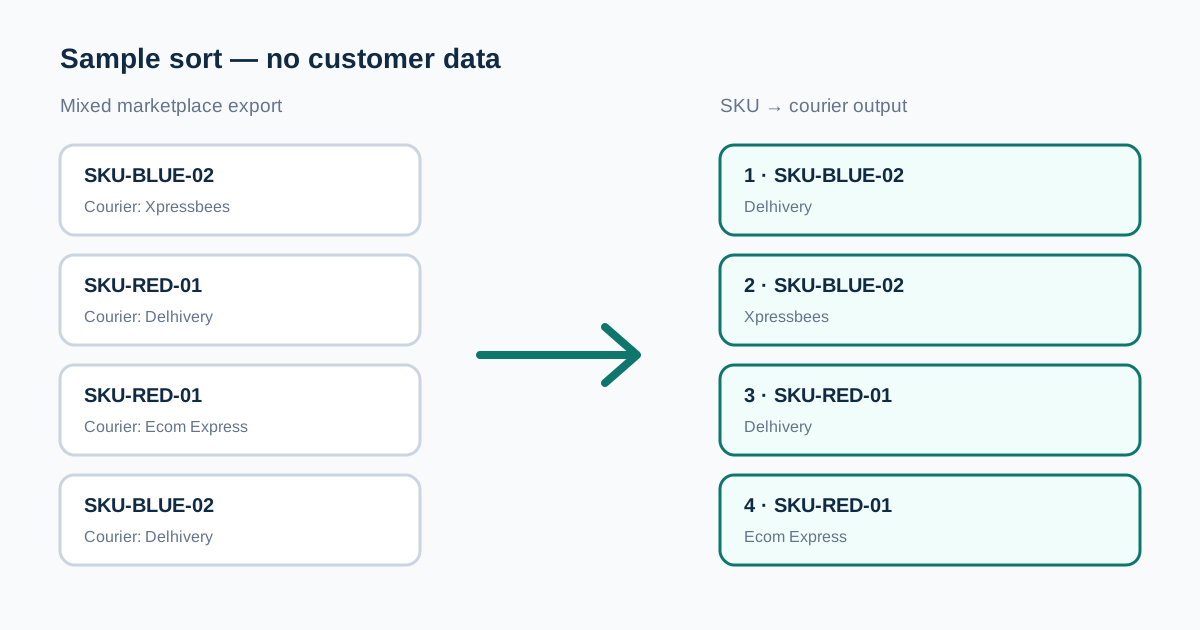
Sort first, then crop
EcomCrop reads the Product Details SKU and courier name from each page, sorts SKU → shipping company, then applies the Meesho label crop so invoice body and blank space are removed before download.
Multiple files, one print-ready PDF
Upload as many Meesho label PDFs as you need. Every page is included, sorted, cropped, and saved locally in your browser.
Supported input and page detection
Use original Meesho Sub Order Labels or supplier label PDFs with selectable text. The tool reads the Product Details area rather than guessing from the file name, so each page can be assigned to a SKU and courier group before it is moved.
Scanned pages, phone photographs saved as PDF, password-protected files, or edited layouts may not contain readable SKU text. Those pages stay in the output under an Unknown group instead of being silently removed.
How the sorting order is decided
Pages are compared by normalized SKU first. Capitalization and surrounding spaces are ignored so visually identical SKUs stay together. Within the same SKU, courier names are sorted to keep handover bags together, while pages with the same values retain a stable order.
The on-screen summary shows the detected SKU and courier counts before download. Review Unknown entries before printing because they usually indicate a non-standard page or text that Meesho has changed in a newer export.
Output size and print checks
Choose the thermal size that matches the roll loaded in the printer. The Meesho crop includes the shipping information and Product Details rows, removes invoice-only space, and rotates the wide label so it fits portrait thermal stock.
Open the preview and inspect the first page of every SKU group. When printing, select the same paper size as the PDF and use 100% or Actual size. A Fit setting can shrink barcodes even when the generated PDF is correct.
Troubleshooting an unexpected order
If labels appear in the wrong group, compare the SKU printed in Product Details with the detected value shown by the tool. Download a fresh original PDF when text has been flattened, and keep different marketplace exports in separate upload batches.
If a courier is shown as Unknown, the label still remains beside its SKU group. Courier detection is a secondary convenience; it never causes a page to be discarded. Preview and count the final pages before releasing a large print job.
A practical packing workflow
Download the day's Meesho batches into one folder, add them together, verify the page total, then sort and crop once. Pick one SKU group at a time and separate courier groups only after the products have been checked.
Keep the original marketplace PDFs until packing is complete. The generated file is designed for printing and order grouping; the originals remain the source of record if an address, invoice, or product detail needs to be checked later.